Fujitsu CG01000-296401 Bedienungsanleitung
Lies die bedienungsanleitung für Fujitsu CG01000-296401 (2 Seiten) kostenlos online; sie gehört zur Kategorie Tastatur. Dieses Handbuch wurde von 57 Personen als hilfreich bewertet und erhielt im Schnitt 4.2 Sterne aus 3 Bewertungen. Hast du eine Frage zu Fujitsu CG01000-296401 oder möchtest du andere Nutzer dieses Produkts befragen? Stelle eine Frage
Seite 1/2
P3PC-6661-01EN
Happy Hacking Keyboard
Professional Classic
(US Layout/Non-Printed)
User’s Guide
* P 3P1 EC - 6 6 6 1 -0N *
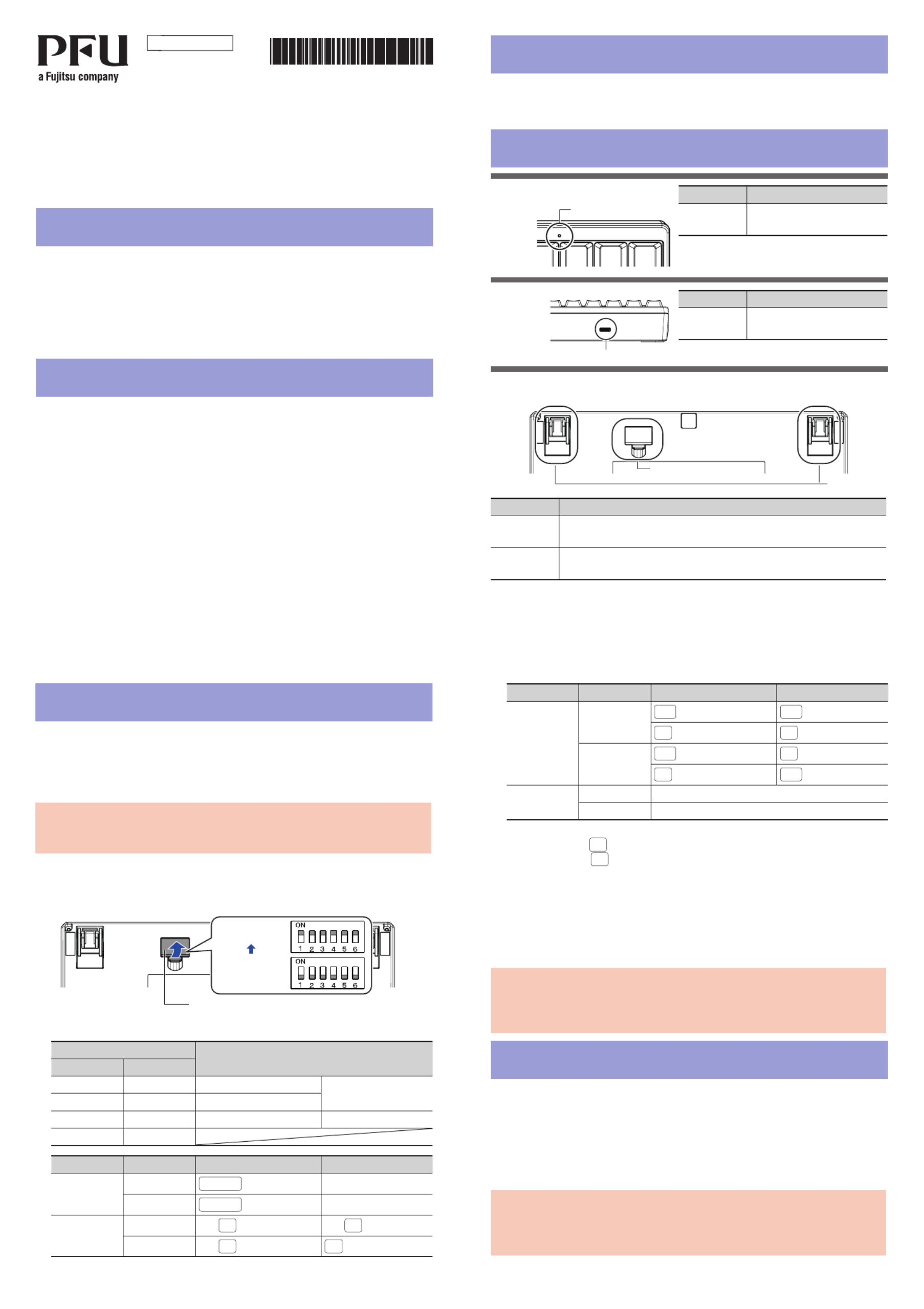
Part Names and Functions
Front
Back
Bottom
Part NameDescription
DIP SwitchesUsed to switch the setting mode.
For details, refer to “Switching the Setting Mode”.
Tilt StandsUsed to adjust the height of the keyboard.
For details, refer to “Adjusting the Height of the Keyboard”.
Introduction
Thank you for purchasing Happy Hacking Keyboard Professional Classic (US Layout/
Non-Printed). Please read this User's Guide and use this product safely and correctly. Be sure
to read and understand "Safety Precautions" (a separate manual) before using the keyboard.
Mac, Mac OS, and macOS are trademarks of Apple Inc.
Other company names and product names are the registered trademarks or trademarks
of the respective companies.
ⒸPFU Limited 2019 October 2019
1 2
Part NameDescription
LED
Indicator
Lit in blue: Caps Lock is on.
Turned off: Caps Lock is off.
Part NameDescription
USB Type-C
Connector
Use the USB cable to connect
this product to a computer.
3 4
Establishing a Connection with a Computer
1 Connect the USB cable to the USB Type-C connector on this prod-
uct and a USB port on a computer.
2 When this product is recognized on the device, follow the instruc-
tions displayed in the window to install the driver software.
⇒A connection with the computer is established.
ATTENTION
Depending on the device that you use, this product may not be recognized when the
device resumes from a suspended status.
In such a case, disconnect the USB cable and then connect it again.
Switching the Setting Mode
Switch the setting mode according to the device that you use. By using the DIP switches
on the bottom of the keyboard, you can change the keyboard setting mode. The HHK
mode is set as the factory default.
You can also change some key codes. To change the settings for the DIP switches, use
a tool such as a flathead screw driver.
ATTENTION
Be sure to disconnect the USB cable before setting any of the DIP switches. Even if you set a DIP
switch while the keyboard is connected via the USB cable, the setting you changed is not applied.
1 Remove the DIP switch cover on the bottom of the keyboard in the
direction of the arrow.
The gure below shows ON/OFF for each DIP switch.
DIP Switch Cover
ON
OFF
(Factory Default)
2 Switch the setting mode by referring to the tables below.
DIP SwitchSetting Mode
SW1 SW2
OFFOFFHHK modeWindows®
ONOFFWin mode
OFFONMac modeMac OS
ON ON
DIP SwitchStatusKeyFunction
SW3 (*1)OFFDelete Delete
ON Delete BS (Back Space)
SW4 OFFLeft ◇Left ◇
ON Left ◇Fn
DIP SwitchStatusKeyFunction
SW5 OFFAlt Alt
◇◇ (*2)
ON Alt ◇ (*2)
◇Alt
SW6OFFPower Saving Enabled (*3)
ONPower Saving Disabled (*4)
*1: In Mac mode, SW3 is disabled.
*2: In Win mode, ◇ functions as the [Windows] key.
In Mac mode, ◇ functions as the [Command] key.
*3: When Power Saving Enabled is set, the device in use cannot be resumed from
the suspended status by pressing a key.
*4: Power Saving Disabled consumes power for the device in use, faster than Pow-
er Saving Enabled.
3 Attach the DIP switch cover back. When attaching the cover, make
sure you push it until it locks in place.
ATTENTION
To return from a suspended status using the keyboard, you need to change the Pow-
er Management settings in the properties of the keyboard in Device Manager on the
operating system.
USB Type-C Connector
LED Indicator
System Requirements
This product can be used with the following computers or devices.
・ Computers with Windows® (Windows®7/Windows® 8.1/Windows® 10) installed
・ Computers with Mac OS (macOS 10.12 or later) installed
Checking the Items in the Package
Make sure that all items shown below are included in the package:
□Keyboard (x1)
□USB cable (x1)
□Safety Precautions (x1)
□User's Guide (this manual) (x1)
If items other than those shown above are included in the package, keep them as well.
Treat the items that are included in the package with care. Retain the box and any pack-
aging material as they would be needed to protect the keyboard should it be necessary
to return the item in the event of a warranty claim.
If you find that an item is missing or defective, contact the distributor/dealer where you
purchased this product.
Tilt Stands
DIP Switches
Produktspezifikationen
| Marke: | Fujitsu |
| Kategorie: | Tastatur |
| Modell: | CG01000-296401 |
Brauchst du Hilfe?
Wenn Sie Hilfe mit Fujitsu CG01000-296401 benötigen, stellen Sie unten eine Frage und andere Benutzer werden Ihnen antworten
Bedienungsanleitung Tastatur Fujitsu

3 August 2024
30 Juli 2024
28 Juli 2024
20 Juli 2024
21 April 2024
Bedienungsanleitung Tastatur
Neueste Bedienungsanleitung für -Kategorien-
2 April 2026
31 März 2026
26 März 2026
25 März 2026
25 März 2026
24 März 2026
19 März 2026
9 März 2026
8 März 2026