Transvideo StarliteHD Bedienungsanleitung
Transvideo Monitor StarliteHD
Lies die bedienungsanleitung für Transvideo StarliteHD (2 Seiten) kostenlos online; sie gehört zur Kategorie Monitor. Dieses Handbuch wurde von 41 Personen als hilfreich bewertet und erhielt im Schnitt 4.5 Sterne aus 2 Bewertungen. Hast du eine Frage zu Transvideo StarliteHD oder möchtest du andere Nutzer dieses Produkts befragen? Stelle eine Frage
Seite 1/2
StarliteHD
Quick Start Guide
www.transvideo.eu
Several patents pending
144TD0002 - Rev 3.1 May 2015
TRANSVIDEO S.A.
Zone Industrielle
F-27135 Verneuil sur Avre
FRANCE
Tel +33 2 3232 2761
Fax +33 2 3260 1479
www.transvideo.eu
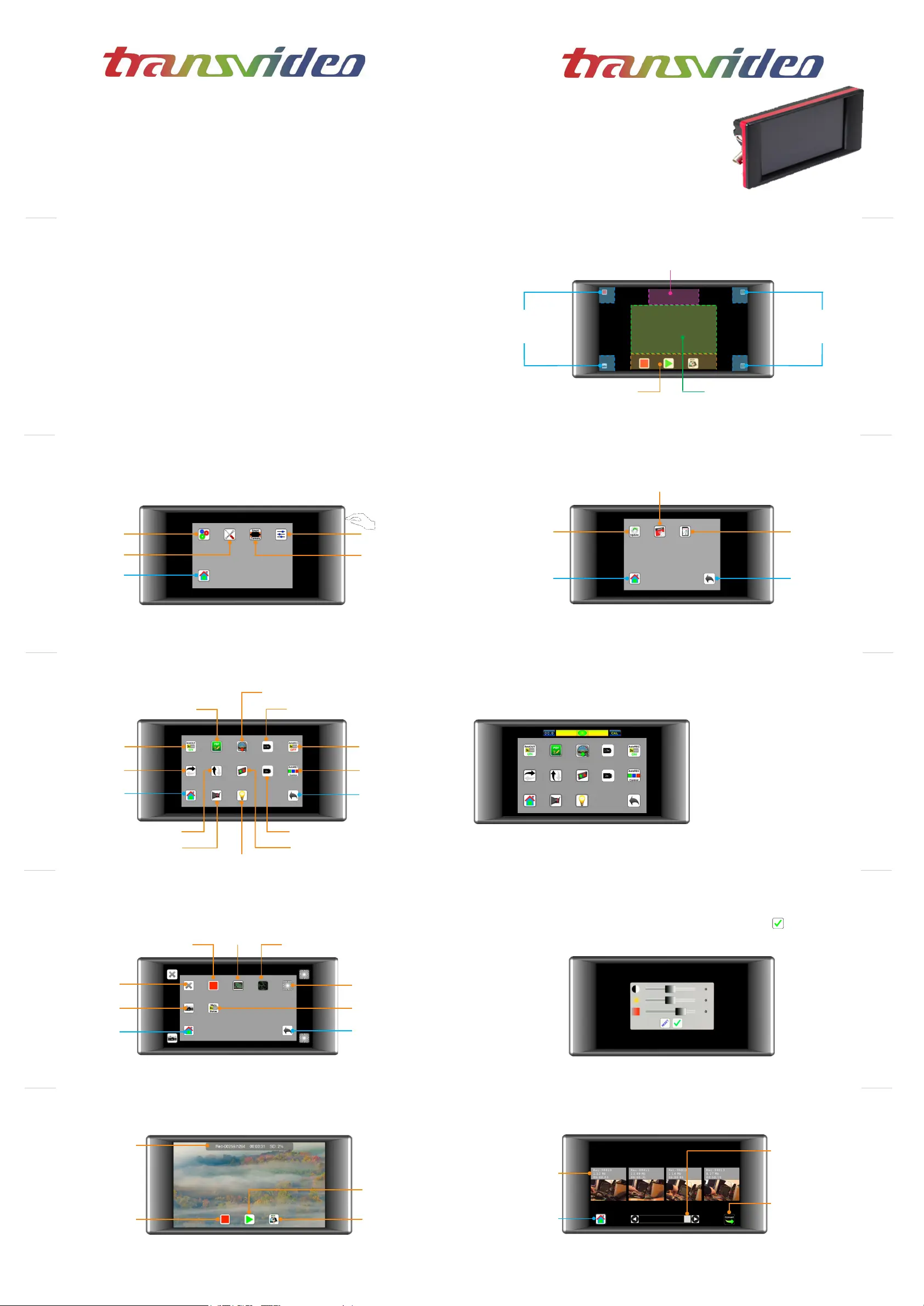
uHome view - Smart Corners
StarliteHD
Displays Smart Corners
Rec zone
Rec - Play & Snap buttons
1:1 Zoom zone (pixel to pixel)
Tap to zoom in or zoom out
Slide to move the zoomed picture
Smart Corners
User assigned tools
Menu / Smart Corners
Smart Corners
User assigned tools
Menu / Smart Corners
3
uMain menu
Smart Corners
System
Adjust
Press down the
ON/OFF switch to
display the main
menu
Tools
Home view
StarliteHD
4
Home view
Back to
main menu
Calendar & clock
Update
SD Card format
uSystem menu
StarliteHD
5
uTools menu
StarliteHD
SDI Out
PDF report
Horizontal Flip
Home view
Vertical Flip
Viewnder mode
Virtual Horizon
Anamorphic Desqueeze 1.3x
Anamorphic Desqueeze 2x
Back to
main menu
Auto REC
Reverse mode
6
uVirtual Horizon
Snapshot
Back to
main menu
Metadata View
No tools
To assign a tool to a smart corner: select a tool, then choose the corner to which you want
to assign it.
Waveform
Home view
Record
StarliteHD
7
uSmart corners menu
StarliteHD
8
StarliteHD
uAdjust menu
9
StarliteHD
uRecording / Playing
Records gallery
Choose the one you
want to play
Home view
Navigation
Slide on thumbnails
to navigate
10
StarliteHD
uRecording / Playing / Converting
11
12
uWarning & Caution
Slide to adjust Luminosity, Brightness or Contrast then validate by pushing
Push Reset to restore default values.
AutoRec Control
( Play, Go, Delete )
From the main menu, select Tools icon
then activate Virtual Horizon
When you see the horizontal bar on the top
of the monitor screen, tap on CAL button.
The green bubble indicates that your
monitor is on level.
Histogram
Vectorscope
Peaking
Record status
Record*
Tap to record
Tap again to stop
Records gallery
Snapshots gallery
Switch on-off Transvideo logo on the back
Convert output container
h.264 to mp4 (default)
* First push the “Convert“
icon then select the video
in the list
* Please note that old converted les with the same name will be overridden* All supported standards
WARNING:
This product must be used in a correct grounded electrical environment; ground defects can create severe
problems to the equipment, the picture quality and even cause danger for the user.
Copyright law and international treaties protect this product, its design and its software. One or several
international patents apply to the StarliteHD. Unauthorized reproduction or distribution of this product or
its design or its software or any portion of them, may result in severe civil and criminal penalties, and will
be prosecuted to the maximum extent possible under the law.
CAUTION:
Warranty is void as the product is opened. The unit contains electrostatic sensitive devices, which can be
damaged or destroyed if you touch them. Very high voltage is present in the product and there is some risk of
electric shock if opened by a non-accredited technician. Standard ESD procedures must be strictly followed
during disassembly/re-assembly of the unit.
The user and/or technician assume full responsibility or any risk of bodily injury, death or property damage
Produktspezifikationen
| Marke: | Transvideo |
| Kategorie: | Monitor |
| Modell: | StarliteHD |
Brauchst du Hilfe?
Wenn Sie Hilfe mit Transvideo StarliteHD benötigen, stellen Sie unten eine Frage und andere Benutzer werden Ihnen antworten
Bedienungsanleitung Monitor Transvideo

28 August 2024
Bedienungsanleitung Monitor
Neueste Bedienungsanleitung für -Kategorien-
3 April 2026
3 April 2026
3 April 2026
3 April 2026
3 April 2026
3 April 2026
3 April 2026
2 April 2026
2 April 2026
1 April 2026